Public API Usage
This page provides an overview of available API endpoints and authentication for integrating HUNTR's capabilities into your workflows.
This page assumes that you are a current customer and have contacted Blackshark.ai about using HUNTR via public API. To use HUNTR's public API you will first need to create an API key.
Currently, HUNTR allows the execution of inference workflows via API. More executions via API are planned for future releases of HUNTR. For functionalities that are not available via API, you can use HUNTR's web interface.
Setting Up Blob Storage for Input Sources and Output Targets
AWS S3 Configuration
Before registering your S3 buckets with HUNTR, you need to set up proper IAM permissions. You can use the examples below along with your s3 buckets to set up the permissions.
Required IAM Permissions
-
For Input Sources (Read Access):
s3:GetObject- to read files from your bucket.s3:ListBucket- to list files in your bucket.
-
For Output Targets (Write Access):
s3:PutObject- to write results to your bucket.s3:ListBucket- to list files in your bucket.
{
    "Version": "2012-10-17",
    "Statement": [
        {
            "Sid": "HuntrAllowS3ReadPolicy",
            "Effect": "Allow",
            "Action": [
                "s3:GetObject",
                "s3:ListBucket"
            ],
            "Resource": [
                "arn:aws:s3:::your-input-bucket",
                "arn:aws:s3:::your-input-bucket/*"
            ]
        }
    ]
}
{
    "Version": "2012-10-17",
    "Statement": [
        {
            "Sid": "HuntrAllowS3WritePolicy",
            "Effect": "Allow",
            "Action": [
                "s3:PutObject",
                "s3:ListBucket"
            ],
            "Resource": [
                "arn:aws:s3:::your-output-bucket",
                "arn:aws:s3:::your-output-bucket/*"
            ]
        }
    ]
}
Create Two Policies to Read, Write & List a S3 Bucket
First, you will need to create the policies. Follow these steps once for HuntrReadS3Policy then again for HuntrWriteS3Policy
-
Open up the AWS console and go to: IAM > Policies > Create policy.
-
In the policy editor please toggle to JSON and paste the policy documents above to list a specific bucket in order read fro.m and write to it. Then click Next.
-
Give the policy the following name and description and click on Create Policy.
-
Name: HuntrReadS3Policy / HuntrWriteS3Policy
-
Description: Policy to allow Read / Write / List of blobs from this S3 bucket for Blackshark’s HuntR Platform.
-
Create Two Roles for Read & Write
After you create the policies, you will need to create the corresponding roles. Follow these steps once for HuntrReadS3Client then again for HuntrWriteS3Client.
-
Go to IAM > Roles > Create Roles.
-
Select AWS Account and Another AWS Account. Provide Blackshark.ai's Account ID 494237398978 and a required ExternalID. Treat this ExternalID like a secret. Click Next.
-
Tick the checkbox for the External ID and provide a secret that you generated with at least 8 symbols. The external ID is required to work with HUNTR.
-
Search for the previously created policies HuntrReadS3Policy /HuntrWriteS3Policy and add it to the role. Click Next.
-
Give the role the following name, description and click on Create Role.
-
Name: HuntrReadS3Client / HuntrWriteS3Client
-
Description: Role for Blackshark’s HuntR platform to assume in order to import data and write results.
-
Azure Configuration using SAS Tokens
Create a SAS token
Azure Portal
-
Go to Storage Browser > Blob containers.
-
Look for your container and click on the context menu of the container.
-
Select Generate SAS.
-
Check the Permissions you want to grant through the SAS Token.
-
If you want to use it as an Input Target check the Read & List permissions.
-
If you want to use it as an Output Target check the Add, Create & Write permissions.
-
-
Select the Start date and Expiry date of the SAS token and click Generate SAS token and URL
-
Copy the Blob SAS token and use it when creating an Input or Output Target.
Azure Storage Explorer
-
Navigate to your container (Your subcription > Storage Accounts > Your storage account > Blob Containers > Your container)
-
Right-click on your container and select Get Shared Access Signature
-
Check the Permissions you want to grant through the SAS Token.
-
If you want to use it as an Input Target check the Read & List permissions.
-
If you want to use it as an Output Target check the Add, Create & Write permissions.
-
-
Select the Start time date and Expiry time date of the SAS token and click Create
-
Copy the SAS token and use it when creating an Input or Output Target.
Create Input Target
You first need to define an input target. An input target specifies where your data is stored and provides the necessary details and permissions for the service to access it.
The following parameters are used to create the input target:
Parameters for S3 Input Target
| Parameter | Description |
|---|---|
input_type |
Must be "s3" |
service_url |
AWS S3 service URL (e.g., https://s3.amazonaws.com) |
assume_role |
Name of the IAM role HUNTR should assume |
account_id |
Your AWS account ID |
bucket_name |
Name of your S3 bucket |
region_name |
AWS region where your bucket is located |
external_id |
Unique identifier for additional security |
Parameters for Azure Blob Storage SAS Input Target
| Parameter | Description |
|---|---|
input_type |
Must be "azure_blob_storage_sas" |
service_url |
Azure Blob Storage account service URL (e.g., https://...core.windows.net) |
container_name |
Name of your Azure container |
sas_token |
SAS authentication token for accessing the Azure container |
You can use either of the following curl command with your specific parameters to register an input source. Make sure to include your API key.
curl -X POST https://preprocessing.huntr.blackshark.ai/v1/input_sources \
-H "Authorization: ApiKey YOUR_API_KEY" \
-H "Content-Type: application/json" \
-d '{
    "input_type": "s3",
    "service_url": "https://s3.amazonaws.com",
    "assume_role": "HuntrReadS3Client",
    "account_id": "123456789012",
    "bucket_name": "my-input-bucket",
    "region_name": "us-east-1",
    "external_id": "required-unique-external-id"
}
curl -X POST https://preprocessing.huntr.blackshark.ai/v1/input_sources \
-H "Authorization: ApiKey YOUR_API_KEY" \
-H "Content-Type: application/json" \
-d '{
    "input_type": "azure_blob_storage_sas",
    "service_url": "https://mystorageaccount.blob.core.windows.net",
    "container_name": "mycontainer",
    "sas_token": "required-sas-token"
}
Updating Input Target
In case you have made a mistake or wish to reconfigure one of your existing input targets you can update them using the right request
depending your input target type. When updating, only the fields you specify (other than input_type) will be changed—any fields you leave out will retain their original values. This allows you to update only the parameters you wish to modify, while all others remain unchanged.
For input targets where the input_type is "s3" you can use the following request:
curl -X PATCH https://preprocessing.huntr.blackshark.ai/v1/input_sources/{input-target-id} \
-H "Authorization: ApiKey YOUR_API_KEY" \
-H "Content-Type: application/json" \
-d '{
    "input_type": "s3",
    "service_url": "https://s3.amazonaws.new.com",
    "assume_role": "NewHuntrReadS3Client",
    "account_id": "123456789013",
    "bucket_name": "new-input-bucket",
    "region_name": "us-east-2",
    "external_id": "new-unique-external-id"
}
For input targets where the input_type is "azure_blob_storage_sas" you can use the following request:
curl -X POST https://preprocessing.huntr.blackshark.ai/v1/input_sources/{input-target-id} \
-H "Authorization: ApiKey YOUR_API_KEY" \
-H "Content-Type: application/json" \
-d '{
    "input_type": "azure_blob_storage_sas",
    "service_url": "https://newstorageaccount.blob.core.windows.net",
    "container_name": "newcontainer",
    "sas_token": "new-sas-token"
}
Create Output Target
To specify where your processed results should be stored, you need to define an output target. An output target provides the destination details and permissions required for HUNTR to write results to your storage location. This is accomplished by sending a POST request to the output target endpoint. Setting up the output target ensures that your results are delivered to the correct location for further use or analysis. The output location can be the same or different from the input location.
The following parameters are used to create the input target:
S3 Output Target Parameters
| Parameter | Description |
|---|---|
output_type |
Must be "s3" |
service_url |
AWS S3 service URL |
assume_role |
Name of the IAM role HUNTR should assume |
account_id |
Your AWS account ID |
bucket_name |
Name of your S3 bucket |
region_name |
AWS region where your bucket is located |
external_id |
Unique identifier for additional security |
blob_key_prefix |
Optional prefix for the output blob key path |
Azure Blob Storage SAS Output Target Parameters
| Parameter | Description |
|---|---|
output_type |
Must be "azure_blob_storage_sas" |
service_url |
Azure container service URL |
container_name |
Name of your Azure container |
sas_token |
Authentication token when writing to Azure containers |
blob_key_prefix |
Optional prefix for the output blob key path |
You can use either of the following curl command with your specific parameters to register an output target. Make sure to include your API key.
curl -X POST https://postprocessing.huntr.blackshark.ai/v1/output_targets \
-H "Authorization: ApiKey YOUR_API_KEY" \
-H "Content-Type: application/json" \
-d '{
    "output_type": "s3",
    "service_url": "https://s3.amazonaws.com",
    "assume_role": "HuntrWriteS3Client",
    "account_id": "123456789012",
    "bucket_name": "my-output-bucket",
    "region_name": "us-east-1",
    "external_id": "required-unique-external-id",
    "blob_key_prefix": null
}
curl -X POST https://postprocessing.huntr.blackshark.ai/v1/output_targets \
-H "Authorization: ApiKey YOUR_API_KEY" \
-H "Content-Type: application/json" \
-d '{
    "output_type": "azure_blob_storage_sas",
    "service_url": "https://mystorageaccount.blob.core.windows.net",
    "container_name": "mycontainer",
    "sas_token": "required-sas-token"
}
Updating Output Target
Similarly to input targets, output targets can also be update. Just like before, only the fields you specify (other than output_type)
will be changed.
For output targets where the output_type is "s3" you can use the following request:
curl -X POST https://postprocessing.huntr.blackshark.ai/v1/output_targets/{output-target-id} \
-H "Authorization: ApiKey YOUR_API_KEY" \
-H "Content-Type: application/json" \
-d '{
    "output_type": "s3",
    "service_url": "https://s3.amazonaws.com",
    "assume_role": "HuntrWriteS3Client",
    "account_id": "123456789012",
    "bucket_name": "my-output-bucket",
    "region_name": "us-east-1",
    "external_id": "required-unique-external-id",
    "blob_key_prefix": null
}
For output targets where the output_type is "azure_blob_storage_sas" you can use the following request:
curl -X POST https://postprocessing.huntr.blackshark.ai/v1/output_targets/{output-target-id} \
-H "Authorization: ApiKey YOUR_API_KEY" \
-H "Content-Type: application/json" \
-d '{
    "output_type": "azure_blob_storage_sas",
    "service_url": "https://mystorageaccount.blob.core.windows.net",
    "container_name": "mycontainer",
    "sas_token": "required-sas-token"
}
Listing Your Registered Sources and Targets
You can use the following curl commands to list you input sources and output targets including your API key.
List Input Sources:
curl -X GET https://preprocessing.huntr.blackshark.ai/v1/input_sources \
-H "Authorization: ApiKey YOUR_API_KEY"
List Output Targets:
curl -X GET https://postprocessing.huntr.blackshark.ai/v1/output_targets \
-H "Authorization: ApiKey YOUR_API_KEY"
You can list all your AI Models with the following curl command. Make sure you include your API key.
Listing AI Models also supports matching AI Model names by a particular substring.| Parameter | Description |
|---|---|
name_filter |
Describes the name filter substring to return matching AI Models. |
Pagination
List endpoints support the query parameters offset, limit and order. All of them are optional.
| Parameter | Description |
|---|---|
offset |
Describes the offset from the first item to return. |
limit |
Describes the total amount of items to return. |
order |
Defines the sorting order by creation date: ascending (asc) or descending (desc). |
Create Execution
This section demonstrates how to create a new inference execution by sending a POST request to the /v1/inference_executions endpoint of the API.
The following parameters are used to create an inference execution:
| Parameter | Description |
|---|---|
input_source_id |
ID of your registered Input Source (from the registration response) |
output_target_id |
ID of your registered Output Target (from the registration response) |
ai_model_ids |
Array of AI model IDs to use for processing (contact support for available models) |
files |
Array of S3 URLs or glob patterns for the files you want to process |
You can use the following curl command with your specific parameters to create an inference execution. Make sure to include your API key.
curl -X POST https://ml.huntr.blackshark.ai/v1/inference_executions \
-H "Authorization: ApiKey YOUR_API_KEY" \
-H "Content-Type: application/json" \
-d '{
    "input_source_id": 1,
    "output_target_id": 1,
    "ai_model_ids": [1],
    "files": [
        "s3://my-input-bucket/folder1/image1.tif",
        "s3://my-input-bucket/folder2/*.tif",
    ]
}
curl -X POST https://ml.huntr.blackshark.ai/v1/inference_executions \
-H "Authorization: ApiKey YOUR_API_KEY" \
-H "Content-Type: application/json" \
-d '{
    "input_source_id": 1,
    "output_target_id": 1,
    "ai_model_ids": [1],
    "files": [
        "abfs://mycontainer/folder1/image1.tif",
        "abfs://mycontainer/folder2/*.tif"
    ]
}
Attention
You can specify individual files by listing each S3/Azure URL explicitly, or use glob patterns to process multiple files or entire directories efficiently.
Create Execution for Already Imported Files
This section demonstrates how to schedule inference executions for already imported files by sending a POST request to the /v1/inference_executions endpoint of the API.
The following parameters are used to create an inference execution:
| Parameter | Description |
|---|---|
scene_node_ids |
List of already imported scene node IDs to schedule the inference execution. This can be either Scenes or Folder of Scenes. Folders will be parsed recursively. |
output_target_id |
ID of your registered Output Target (from the registration response) |
ai_model_ids |
Array of AI model IDs to use for processing (contact support for available models) |
You can use the following curl command with your specific parameters to create an inference execution. Make sure to include your API key.
curl -X POST https://ml.huntr.blackshark.ai/v1/inference_executions \
-H "Authorization: ApiKey YOUR_API_KEY" \
-H "Content-Type: application/json" \
-d '{
    "ai_model_ids": [1],
    "output_target_id": 1,
    "scene_node_ids":[7]
}'
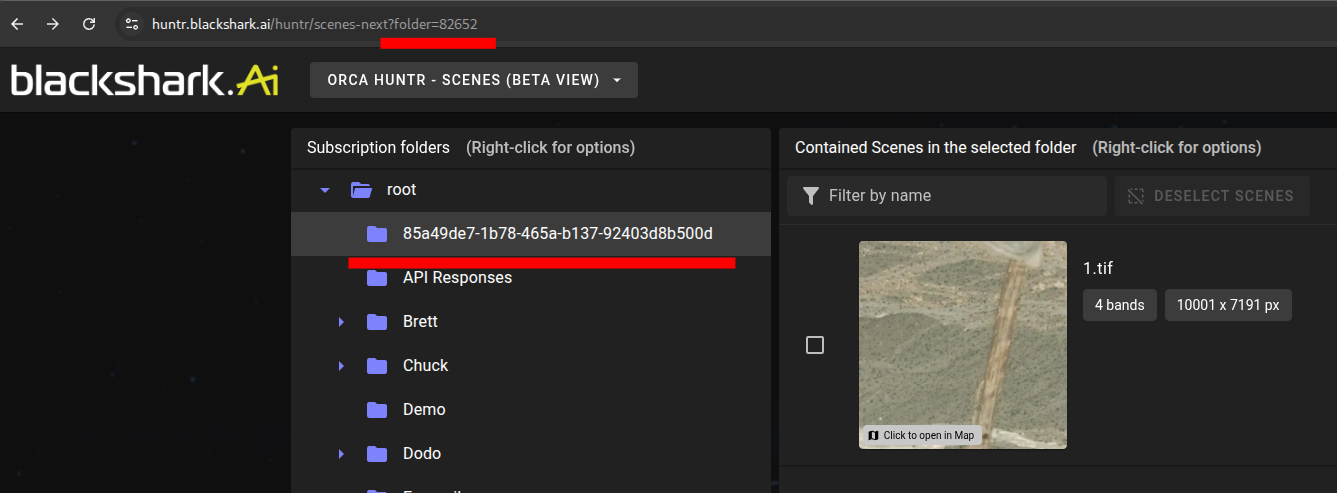
Attention
You can get the scene node IDs from the response of POST and GET /inference_execution endpoints for an already completed inference execution under the key "scene_node_ids".
Model Selection
The ai_model_ids parameter is a list of numbers that identify which AI models you want to use. Use these IDs in your execution request to make sure the correct models are used for your inference run.
Blackshark.ai Model IDs
The HUNTR pretrained models provided by Blackshark.ai have the following model IDs:
| Model ID | BSK Model |
|---|---|
1819 |
Vegetation 50cm/px |
1549 |
Roads 50cm/px |
928 |
Building Roofprints 50cm/px |
1544 |
High-Res Building Roofprints |
Glob Pattern Support for Files
The files parameter supports both explicit S3 URLs and glob patterns to match multiple files efficiently. Instead of listing each file individually, you can use glob patterns to specify groups of files based on naming conventions, directory structures, or file extensions.
Supported Glob Patterns
| Pattern | Description | Example | Matches |
|---|---|---|---|
* |
Matches any sequence of characters except path separators | s3://bucket/data/*.tif |
All .tif files in the data folder |
** |
Matches any sequence of characters including path separators (recursive) | s3://bucket/**/*.tif |
All .tif files in bucket and all subdirectories |
? |
Matches any single character | s3://bucket/image?.tif |
image1.tif, image2.tif, imageA.tif |
[abc] |
Matches any character within brackets | s3://bucket/image[123].tif |
image1.tif, image2.tif, image3.tif |
[a-z] |
Matches any character in the specified range | s3://bucket/tile[a-c].tif |
tilea.tif, tileb.tif, tilec.tif |
[!abc] |
Matches any character NOT in brackets | s3://bucket/image[!123].tif |
image4.tif, imageA.tif (but not image1.tif) |
{pattern1,pattern2} |
Matches either pattern1 or pattern2 | s3://bucket/*.{tif,jpg} |
All .tif and .jpg files |
Inference Execution Status
You can monitor an execution's progress with the following curl command replacing {EXECUTION_ID} with the ID returned from the creation request. Make sure you include your API key.
curl -X GET https://ml.huntr.blackshark.ai/v1/inference_executions/{EXECUTION_ID} \
-H "Authorization: ApiKey YOUR_API_KEY"
Listing All Your Inference Executions
You can list all your executions with the following curl command. Make sure you include your API key.
curl -X GET https://ml.huntr.blackshark.ai/v1/inference_executions \
-H "Authorization: ApiKey YOUR_API_KEY"
Results
After your inference execution completes, the results will be written to your specified output target. The output structure is organized for easy access: a top-level folder will be created with the name of the image you processed. Inside this image-named folder, each inference run will have its own subfolder, named after the unique run ID assigned to that execution. Within each run ID folder, there will be a subfolder for each AI model used, named after the model. The output files generated by the AI model for that specific run are stored inside the corresponding model folder.
Below is an example of the output folder structure you can expect after an inference execution: